bimmer-tool Lite
- 自動車と乗り物
- 3.7.6
- 10.5 MB
- by bimmer-tool
- Android 4.2+
- Mar 06,2026
- パッケージ名: pl.pw.btool.lite
Here's a cleaned, organized, and professional version of your original content, suitable for use on a website, app description, or support page:
bimmer-tool – Advanced OBD2 Diagnostics for BMW Cars
bimmer-tool enables comprehensive diagnostics and maintenance functions for BMW vehicles, including:
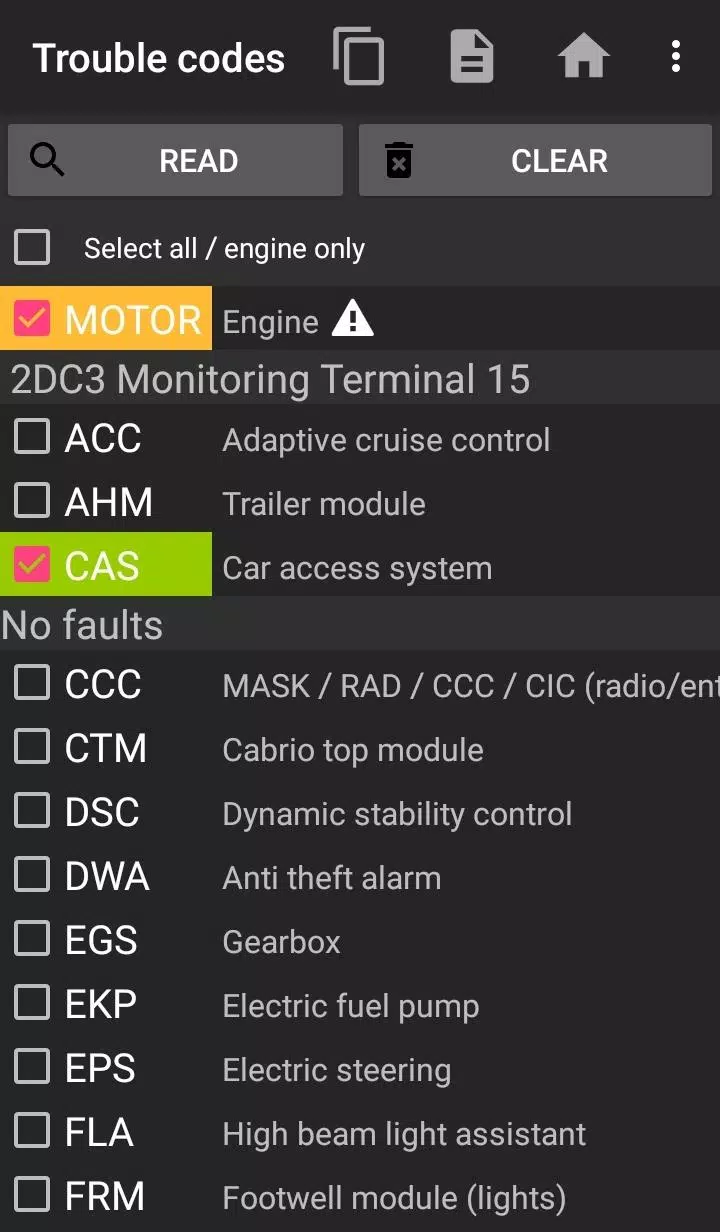
- Reading and clearing fault codes
- Monitoring DPF regeneration status
- Requesting forced DPF regeneration
- Resetting DPF adaptation values (after filter replacement)
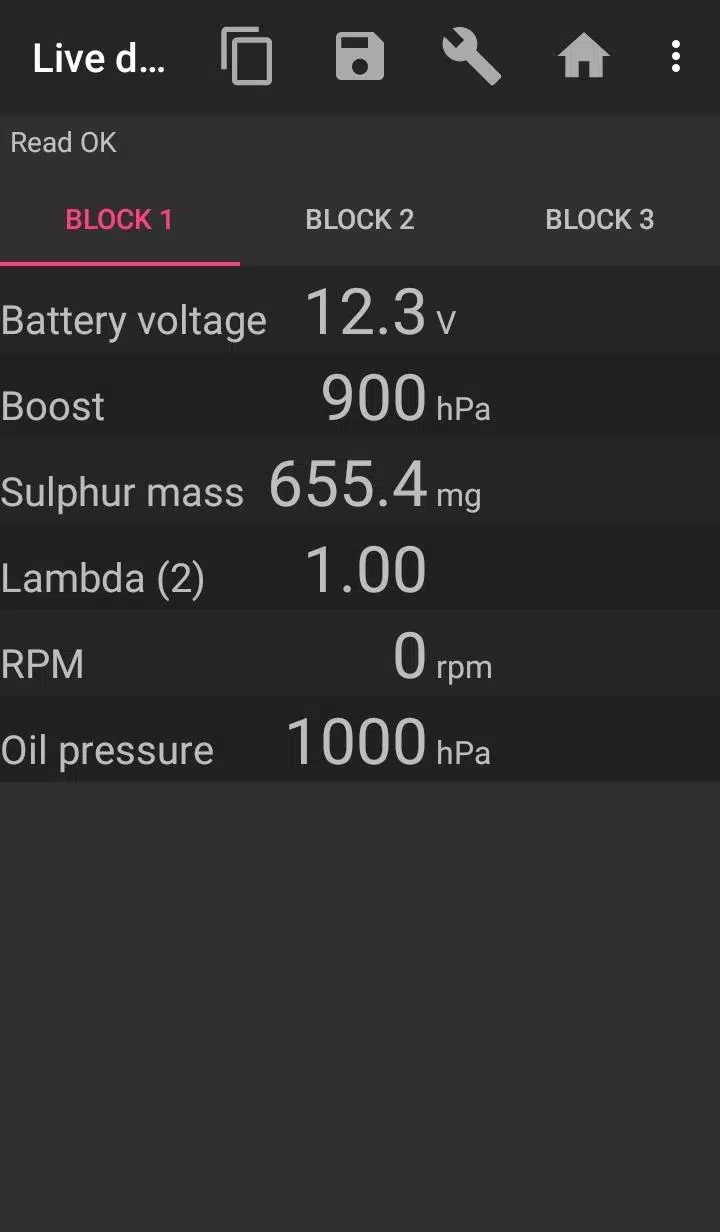
- Reading exhaust gas pressure, fuel pressure, intake manifold pressure, air mass, and injector adjustments
- Viewing actual vs. expected sensor values
- Logging live data to CSV for advanced analysis
- Registering battery replacement (without altering battery profile)
- Resetting warning lamps triggered by short-circuit errors
- Resetting oil, brake, and service interval indicators
✅ Supported Vehicles & Compatibility
- BMW models from 2008 onward: Full functionality with all supported adapters.
- Pre-2008 models (e.g., E46, E39, E83, E53): Limited features. K+DCan USB cable is required for reliable operation. Wireless ELM327 adapters may not work or may lack full functionality.
⚠️ Important Note: For optimal performance, use only certified and compatible OBD2 adapters. Wireless connections (Bluetooth/WiFi) are not recommended for older engines.
🔧 Recommended OBD2 Adapters
| Adapter Type | Recommended For | Notes |
|---|---|---|
| K+DCan USB Cable | All BMWs (especially pre-2008) | Most reliable option. Requires USB-OTG cable for mobile devices. |
| ENET Cable / WiFi Adapter | F-series & G-series BMWs | Use USB-C to Ethernet adapter for ENET. |
| ELM327 Bluetooth | Post-2008 models | Only genuine ELM327 or PIC18-based adapters supported. May not work with older engines. |
| ELM327 WiFi | Post-2008 models | Less stable than USB. Disable mobile data to avoid interference. |
✅ Recommended Adapters:
- Vgate vLinker MC/FS/BM/FD
https://www.vgatemall.com/products/ - UniCarScan UCSI-2000 / USCI-2100
Set to D-Can mode: MODE2
https://www.wgsoft.de/shop/obd-2-komplettsysteme/unicarscan/114/unicarscan-ucsi-2000-diagnoseadapter
https://www.bmdiag.co.uk/unicarscan-ucsi-2000-bluetooth-obd2-adapter - Carista OBD2 Adapter
https://caristaapp.com/adapter - Veepeak OBDCheck BLE
https://www.veepeak.com/product/obdcheck-ble
🚗 Quick Start Guide
- Connect the OBD2 adapter to your car’s OBD-II port (under the dashboard).
- Turn ignition ON (do not start the engine).
- Pair the adapter with your phone:
- USB: Use a USB-OTG cable. Select
bimmer-toolwhen prompted. - Bluetooth: Go to phone settings → Bluetooth → Pair device (PIN:
0000or1234). - WiFi: Turn off mobile data. Connect to the adapter’s WiFi network.
- USB: Use a USB-OTG cable. Select
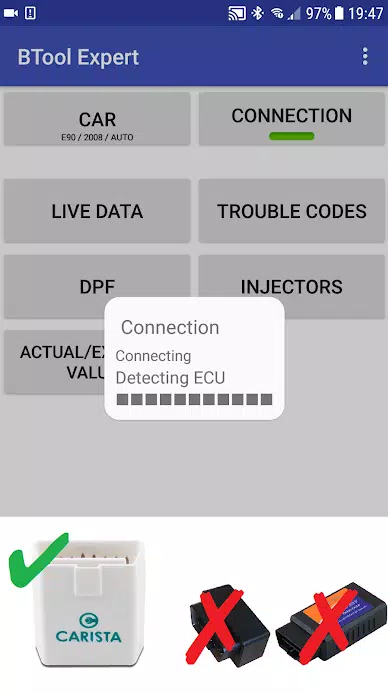
- Open bimmer-tool, go to ‘Car’, and select your model and year.
- Navigate to ‘Connection’, choose:
- Connection type (USB/Bluetooth/WiFi)
- Adapter type
- Communication protocol (e.g., K+DCan, D-Can)
- Tap ‘Connect’.
⚠️ Common Issues & Solutions
| Problem | Solution |
|---|---|
| “No Response” error (cars up to 2007, Bluetooth/WiFi) | Try enabling ATWM in Advanced Connection Settings |
| No connection despite correct settings | Force stop all diagnostic apps (including bimmer-tool), or restart your phone |
| Adapter not detected | Ensure the correct protocol is selected; avoid using third-party or counterfeit adapters |
🔐 Why Does the App Need Permissions?
- Storage: Required for USB adapter support (file access).
- Photos/Media/Files: To save logged data as CSV files.
- Bluetooth Permissions: To pair with Bluetooth adapters.
- Full Network Access: Needed for WiFi-based adapters.
- Approximate Location: Used only for Bluetooth scanning (app does not collect or use location data).
📦 What’s New in Version 3.7.6-L (Updated: November 10, 2024)
- ✅ Diesel Idle Speed Adjustment
- ✅ Throttle Body Control (for select diesel models)
Enhancements improve drivability, emissions control, and diagnostics accuracy.
❓ Need Help?
For technical support, troubleshooting, or questions about compatibility, send an email to our support team.
You can find our contact details at the bottom of the app or website.
bimmer-tool – Power your BMW diagnostics with confidence.
Always consult a professional mechanic before performing major repairs.
Let me know if you'd like a PDF version, shortened FAQ, or translation into another language!










-
 『プリンス・オブ・ペルシャ:ロストクラウン』がモバイルプラットフォームに登場、受賞歴のあるタイトルがスマホで楽しめる
『プリンセス・オブ・ペルシャ:失われた王冠』がAndroidで正式にリリースされました。 Ubisoftが開発した本作は、2024年1月にPC版が発売されました。このメトロイドヴァニアスタイルのアクションアドベンチャーでは、伝説の精鋭部隊「不死者」の一員であり、若き戦士であるサルゴンになりすましてプレイします。物語の明かされる部分トミリス女王は、あなたと仲間の戦士たちを、息子であるガッサーン王子を救出する重要な任務に送り出します。あなたの旅は、かつて聖なる都市であったが、現在は時間ゆがみを持つ怪
Oct 20,2026 -
 『ディズニー ドリームライト バレー』、新機能大放出の大型配信イベント開催日を公開
ディズニー ドリームライト バレーは、次のショーケースストリームの日程を発表しました。 それは今年および2026年に何が始まるかについての詳細を明らかにするものです。 大きなアップデートが間もなく到着します—カレンダーにマークを付けてください!もしあなたがディズニーのファンなら、お気に入りのストーリーのグッズ、スピンオフ作品、そして改编作品に埋もれていることでしょう。ディズニー ドリームライト バレーも例外ではありません—今ではApple Arcadeの加入者向けにモバイル版で利用可能—そして、
Oct 19,2026 - ◇ 『アージュ・オブ・マイソロジー:リトルド』公開 Oct 06,2026
- ◇ 「ファイナルファンタジータクティクス イヴァリース・クロニクルズ」が帰還 Oct 06,2026
- ◇ Amazonプライム会員限定ではなくなった、20ドルのコードレス電動エアダスターのブラックフライデー特別価格 Oct 05,2026
- ◇ アップルウォッチシリーズ11、ホリデーシーズン前に過去最低価格に Oct 03,2026
- ◇ 『ドラゴンボールZ』のキャラクター13選 Oct 01,2026
- ◇ 「デルタルーン」Switch 2 版の限定機能、秘密の部屋で明かされる Oct 01,2026
- ◇ Scratchy Scratchyはスクラッチカードシミュレーター(本物です)iOSとAndroidに登場 Sep 30,2026
- ◇ モバイル版『ステルダバレー』初心者ガイド:基本メカニクスと進捗の理解 Sep 30,2026
- ◇ 『ボーダーランズ4』発売開始:公式発売時刻一覧 Sep 28,2026
- ◇ REPOのシークットショップ解禁:完全ガイド Sep 27,2026



- 1 スターシードアップデート:2025年1月のコードがリリースされました Feb 25,2025
- 2 Pokémon GO Fest 2025: 日程、場所、イベント詳細 Jan 08,2025
- 3 ウクライナのインターネットが「S.T.A.L.K.E.R.」として停止2分リリースで圧倒 Dec 30,2024
- 4 PokémonTCGポケット:不思議な日付、時刻、およびプロモーションカード - 2025年2月 Mar 03,2025
- 5 Black Myth: Wukong が発売数日前に Steam チャートでトップに Jan 07,2025
- 6 韓国のシムズのようなインゾイは、2025年3月に遅れました Mar 01,2025
- 7 スターシードアスニアトリガーコード(2025年1月) Mar 06,2025
- 8 アサシンの信条の影は、強化のために2025年3月に延期されました Feb 21,2025





-
予算編成と投資:金融アプリのガイド
合計 9
-
迅速なプレイのための中毒性の超高性ゲーム
合計 10