Cross Stitch Pattern Creator
- Art & Design
- 5.0.2
- 7.1 MB
- by Crochet Designs
- Android 8.0+
- May 17,2026
- Package Name: com.crochetdesigns.crossstitchcreator
Design your very own cross stitch patterns.
Cross Stitch Pattern Creator
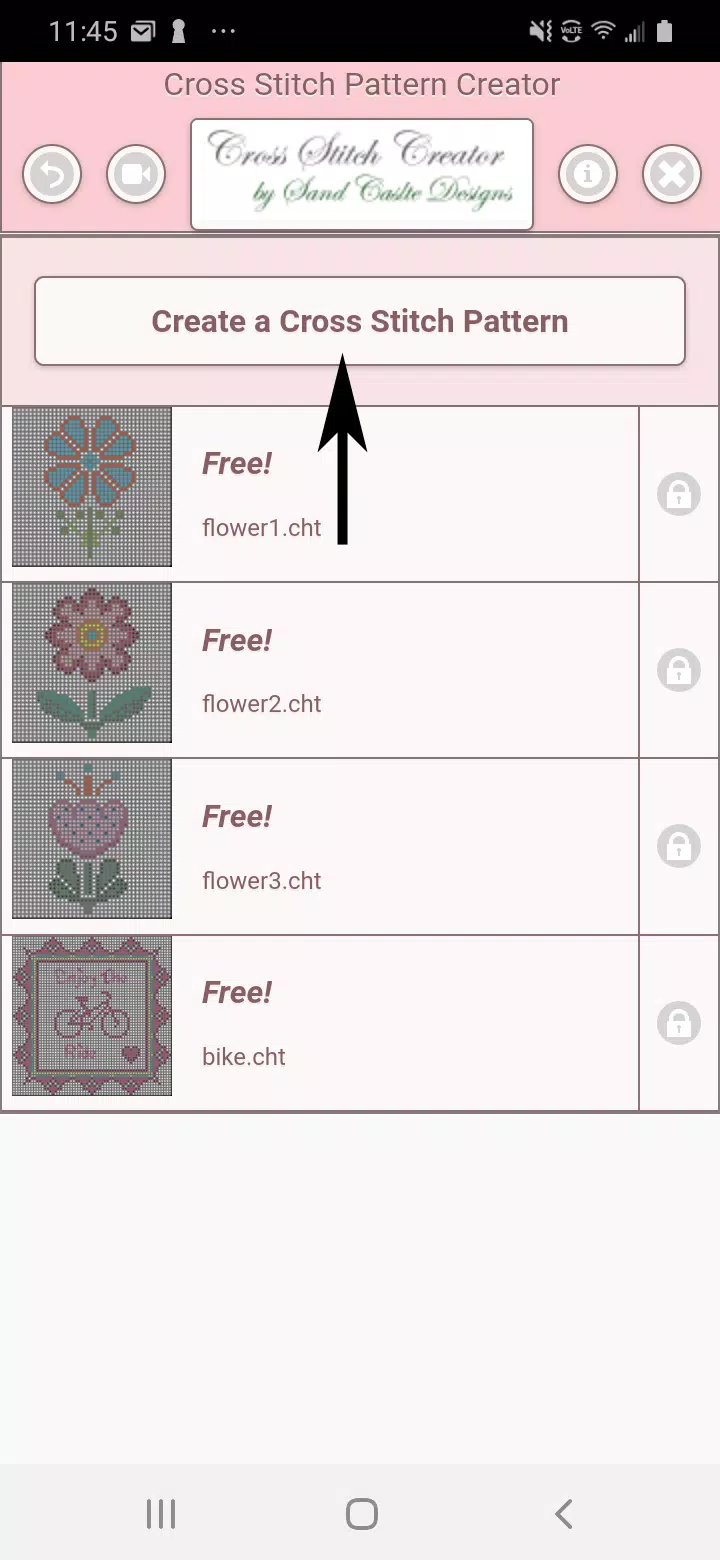
Includes 4 sample cross stitch patterns. Free to download. Activation costs $2.99.
We highly recommend using a tablet due to the typical size of cross stitch patterns.
Make your own cross stitch patterns with the Cross Stitch Pattern Creator
To start designing, click the "Create a Cross Stitch Pattern" button.
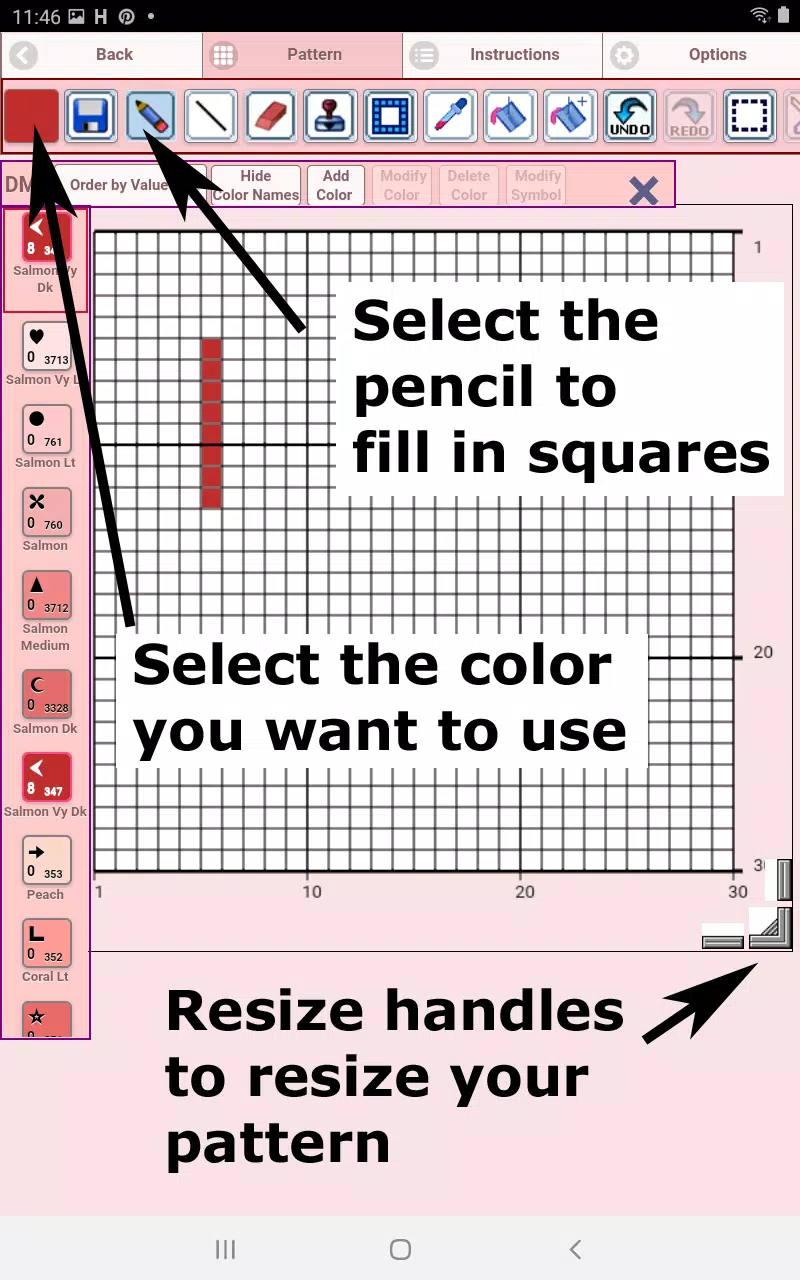
The Cross Stitch Pattern Editor will open. Fill in the squares with DMC floss colors.
You can even add custom colors if you wish.
Getting started is simple: Use the pencil tool to fill squares in your pattern. Use the eraser to clear filled squares.
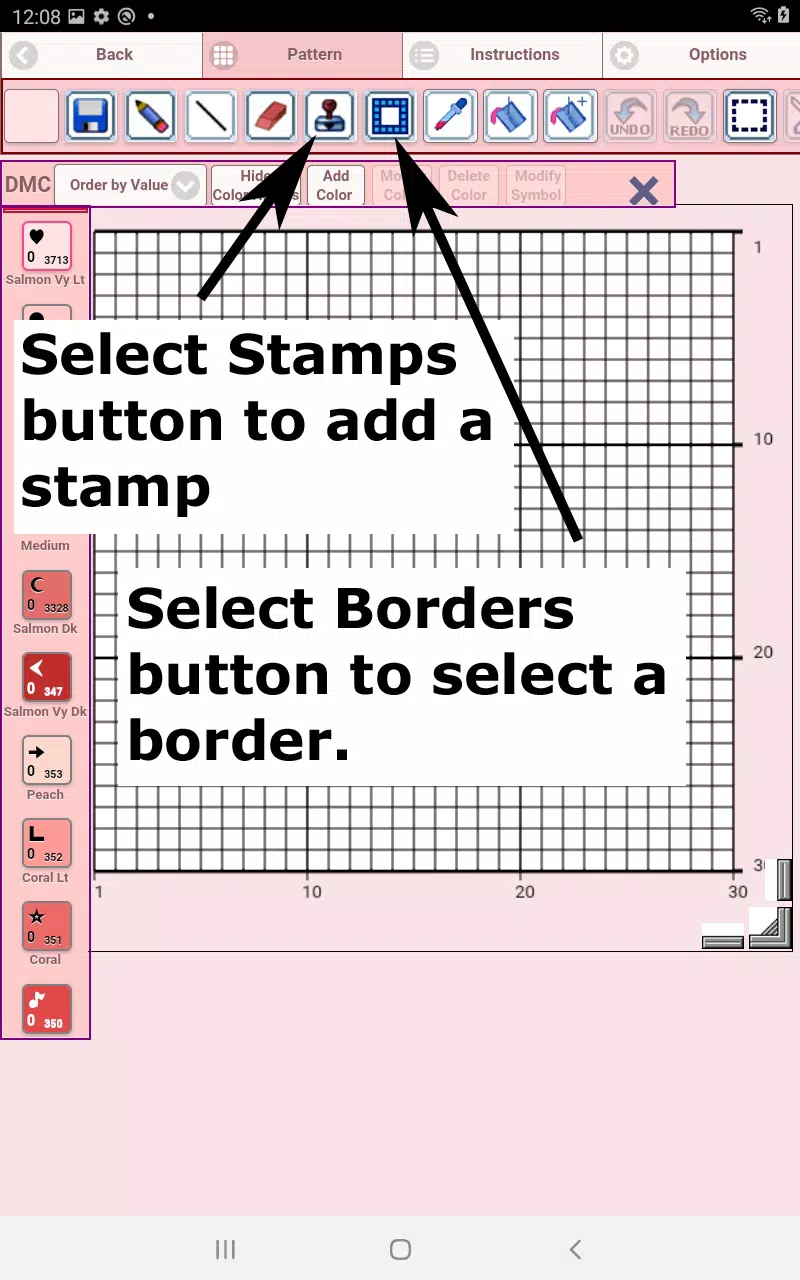
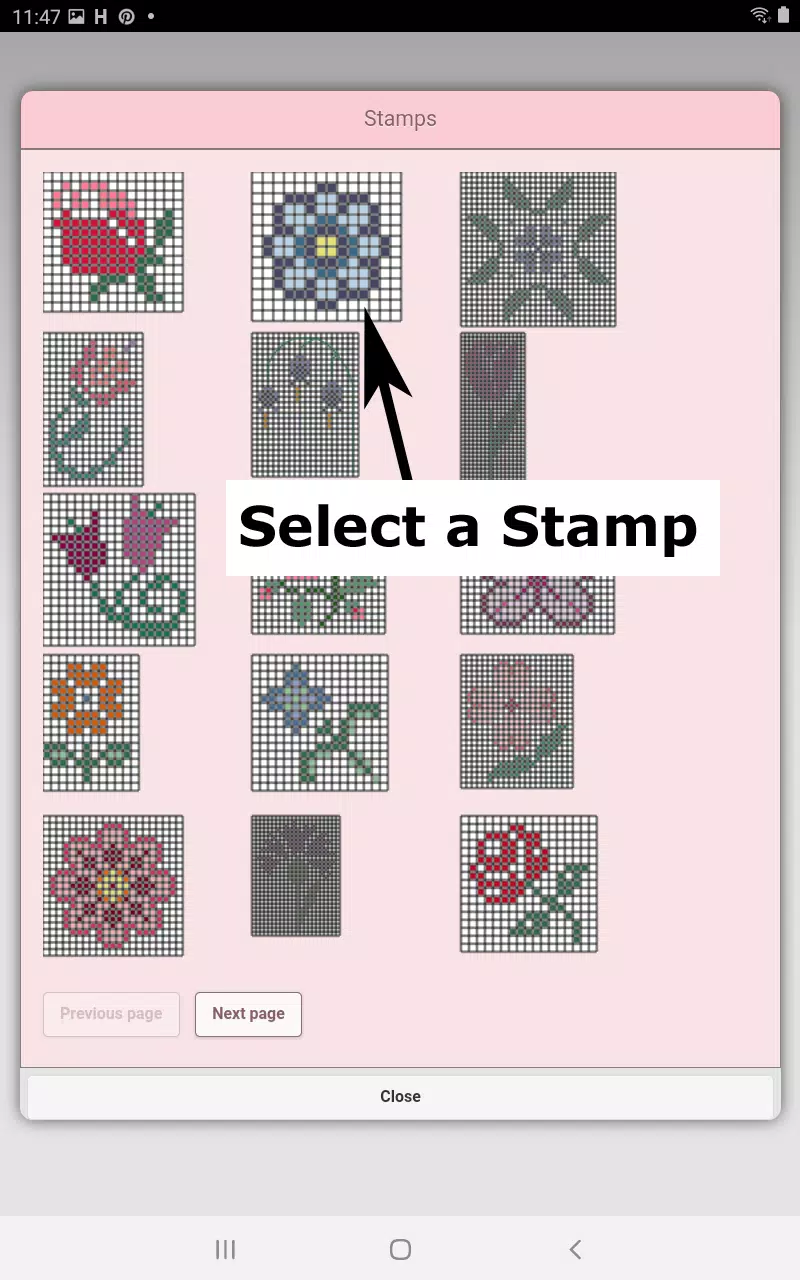
Choose from over 80 stamps and borders to apply to your cross stitch pattern.
The button bar, from left to right, includes:
DMC Floss Color button – Select your desired floss color
Save button – Saves your pattern
Pencil button – Fills squares in your cross stitch pattern
Eraser button – Erases filled squares and backstitch lines
Backstitch button – First, choose a color. Then click this button to add backstitch lines
Backstitch move button – Drag a selected backstitch to a new position
Backstitch move stitch end – Select a backstitch; blue handles appear. Adjust either end as needed
Stamps button – Add small pre-made cross stitch designs to your pattern
Borders button – Choose borders that automatically wrap around your design
Dropper button – Pick a color from your pattern to use elsewhere
Bucket button – Fill a selected area with the current color
Bucket+ button – Replace one color with the currently selected color
Undo button – Revert your last change
Redo button – Restore changes you undid
Selection box button – Select an area to cut, copy, rotate, or flip
Cut button – First, select an area with the selection tool, then cut it out
Copy button – After selecting an area, copy it to the clipboard
Paste button – Paste the copied area and drag it into place
Rotate button – Rotate the selected area or the entire pattern
Flip right/left button – Flip the selection or pattern horizontally
Flip top/bottom button – Flip the selection or pattern vertically
Zoom in button – Enlarge the pattern view
Zoom out button – Reduce the pattern view
Symbols button – Show a unique symbol for each color to identify its value
Picture button – Upload a photo from your device and convert it into a pattern
Social media button – Share your pattern via email, text, and more
Resize bars – Located at the bottom-right corner; drag to adjust your pattern’s size
Option settings – Customize grid color, switch fill style from Solid to X's, or hide the row/column counter
Select whether to display the row and column counter.
Instruction page – Shows DMC colors used and finished sizes for various Aida cloth counts
different Aida Cloth sizes
Finished Product page – Preview your stitched pattern. You can also change the fabric color.







-
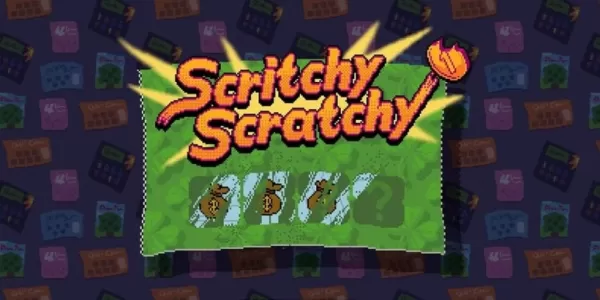 Scritchy Scratchy is a scratchcard simulator (yes, really) coming to iOS and Android
Scritchy Scratchy is a scratchcard simulator (seriously) launching on iOS and AndroidThe game challenges you to scratch cards, using your earnings to boost your luck and powerIt features hints of deeper psychological themes and strangely captivating
Sep 30,2026 -
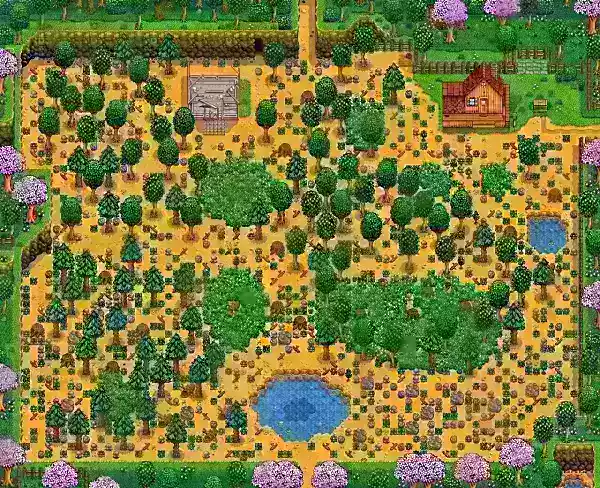 Stardew Valley Beginner’s Guide for Mobile Understanding the Core Mechanics and How to Progress
Stardew Valley may appear straightforward at first glance, but beneath its charming agricultural setting lies a complex simulation where various systems interact meaningfully. Newcomers often find the initial hours overwhelming due to minimal in-game
Sep 30,2026 - ◇ Borderlands 4 Launch: Official Release Timings Sep 28,2026
- ◇ REPO's Secret Shop Unlocked: Full Guide Sep 27,2026
- ◇ Fortnite Returns to iOS in US After Long Wait Sep 27,2026
- ◇ Activision Insists Heavily Criticized Call of Duty Black Ops 6 and Warzone Ads in Loadout Menus Were a 'Test' Published 'In Error,' Strips Them Out Following Backlash Sep 25,2026
- ◇ The Batman 2 Script Finally Complete as Matt Reeves Shares Long-Awaited Image Update Sep 24,2026
- ◇ Root cause? Crossword Clue - Try Hard Guides Sep 24,2026
- ◇ Blizzard Embraces Marvel Rivals' Rise, Signals Major Overwatch 2 Overhaul Sep 19,2026
- ◇ Black Ops 6 Season 3 Patch Notes Unveiled Sep 19,2026
- ◇ As Elio Flops, Pixar Exec Admits It's a 'Rough Time' to Make Original Films, but Alternative Is 'Making Toy Story 27' Sep 16,2026
- ◇ Disney Magic Match 3D Opens Pre-Registration Sep 15,2026

- 1 How to Get All Ability Outfits in Infinity Nikki Feb 28,2025
- 2 Pokemon GO Fest 2025: Dates, Locations, and Event Details Jan 08,2025
- 3 Ukrainian Internet Stalled as 'S.T.A.L.K.E.R. 2' Release Overwhelms Dec 30,2024
- 4 Black Myth: Wukong Tops Steam Charts Days Before its Launch Jan 07,2025
- 5 Pokémon TCG Pocket: Wonder Pick Date, Time, and Promo Cards – February 2025 Mar 03,2025
- 6 inZOI, a Korean Sims-Like, Delayed to March 2025 Mar 01,2025
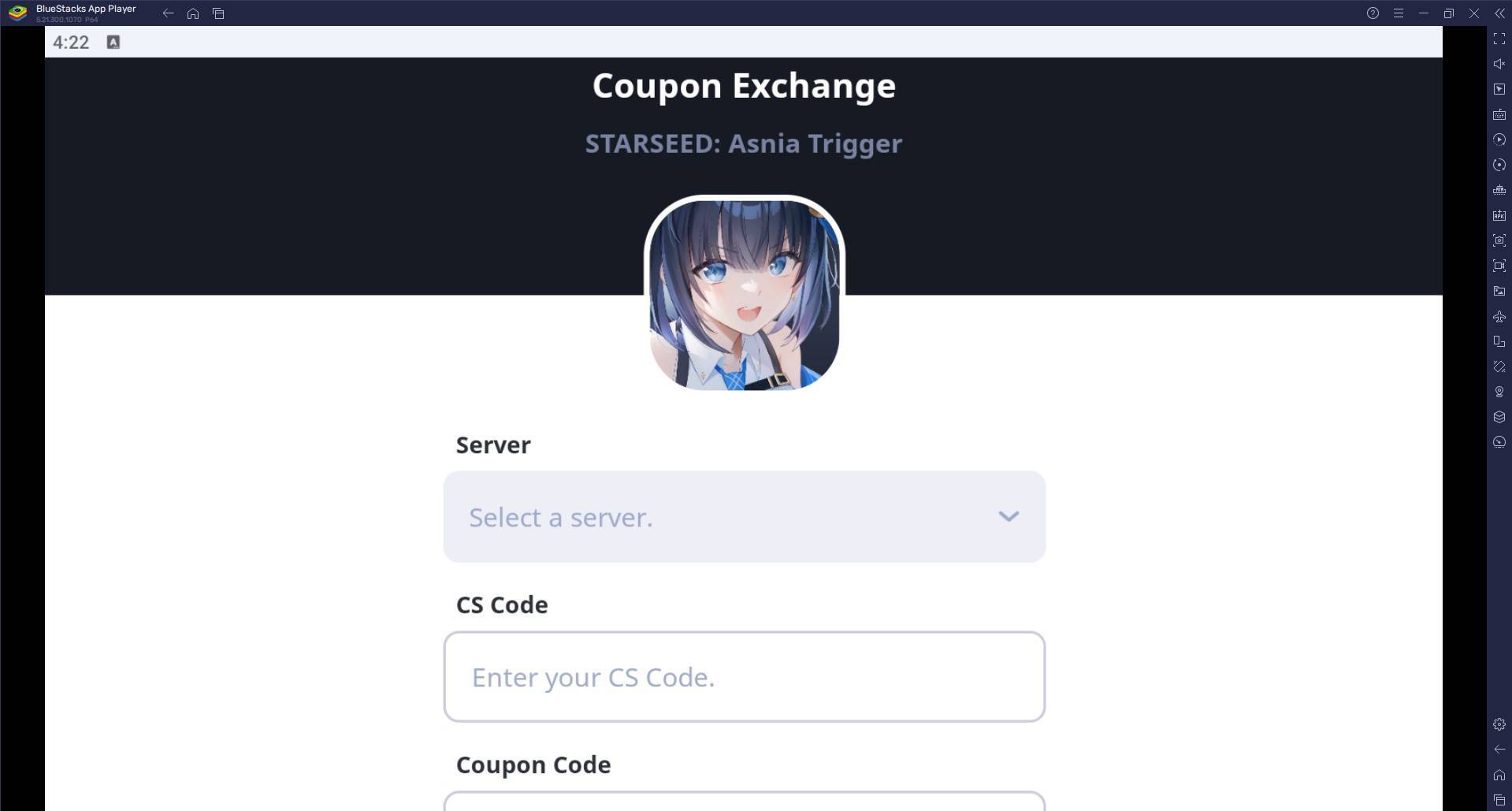
- 7 Starseed Asnia Trigger Codes (January 2025) Mar 06,2025
- 8 Assassin's Creed Shadows Postponed to March 2025 for Enhancements Feb 21,2025





-
Budgeting & Investing: Your Guide to Financial Apps
A total of 9
-
Addictive Hypercasual Games for Quick Play
A total of 10
-
Best Role Playing Games for Android
A total of 10